
Introduction
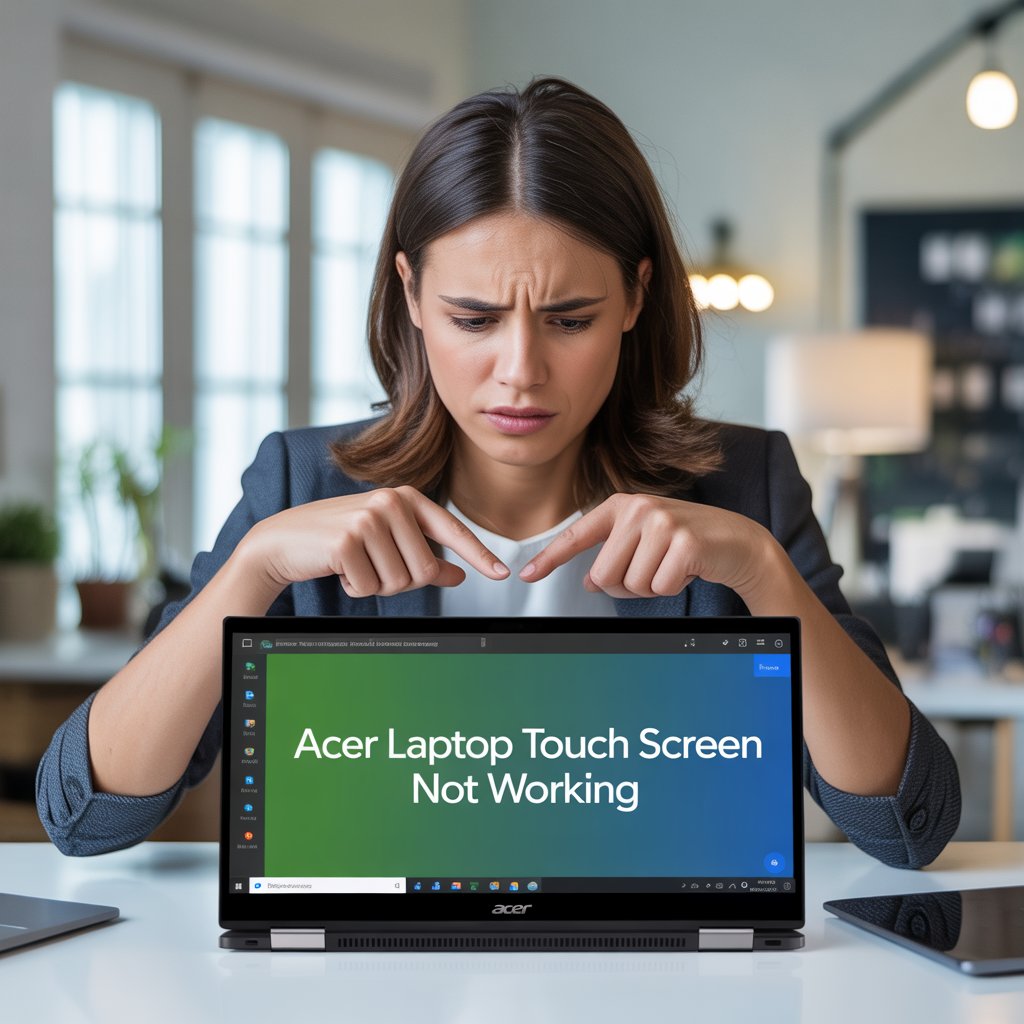
Acer laptops are known for their reliability and affordability, but even the best devices can run into problems. One common issue many users face is when the touch screen stops working. Whether your touchscreen is completely unresponsive, only partially functional, or registering incorrect inputs, it can be frustrating, especially if you rely on it for work, study, or creative projects.op Acer Laptop Touch Screen Not Working
This guide explains why your Acer laptop’s touch screen might stop responding and walks you through proven fixes, from simple software tweaks to advanced hardware troubleshooting. By the end, you’ll know how to restore touch functionality and prevent future problems
1. Understanding Why Your Acer Laptop Touch Screen Stops Working <a name=”causes”></a>

Before jumping to fixes, it’s helpful to understand the main reasons touch screens fail. Common causes include:
- Driver Problems: Outdated or corrupt drivers can cause your touchscreen to malfunction.
- Windows Updates: Certain updates may conflict with touch screen drivers.
- Hardware Issues: A damaged digitizer or loose internal connections can make the touch screen unresponsive.
- Screen Calibration Errors: Incorrect calibration can cause inaccurate or no touch response.
- Software Conflicts: Some applications or background processes can interfere with touch functionality.
Example: Many Acer users report that after updating Windows, their touchscreens stop responding. This is usually because the update replaced a driver with an incompatible version.
2. Quick Troubleshooting Steps <a name=”quick-fixes”></a>
Start with these simple, fast fixes before moving to more technical solutions.
Step 1: Restart Your Laptop
- Sometimes, the system just needs a refresh. A simple restart can restore touch functionality.
Step 2: Clean the Screen
- Use a soft microfiber cloth to remove dust, grease, or moisture. Even small smudges can prevent touch recognition.
Step 3: Disconnect External Devices
- Keyboards, mice, or USB devices can sometimes interfere. Disconnect all peripherals and check whether the touchscreen works.
Step 4: Press the Windows key and the X key at the same time, then choose Device Manager.
- Press Windows key + X, then select Device Manager.
- Expand Human Interface Devices.
- Right-click HID-compliant touch screen → Enable device (if disabled).
Step 5: Run the Windows Troubleshooter
- Go to Settings → Update & Security → Troubleshoot → Additional troubleshooters.
- Select Hardware and Devices → Run the troubleshooter.
- Follow the instructions to automatically fix common issues.
3. Driver Updates and Reinstallation <a name=”driver-fixes”></a>

Driver issues are the most common reason for touchscreen failures. Updating or reinstalling drivers can fix most problems.
Updating Touch Screen Drivers
- Open Device Manager.
- Expand Human Interface Devices.
- Right-click HID-compliant touch screen → Update driver → Search automatically for drivers.
- Restart your laptop after updating.
Reinstalling Touch Screen Drivers
- In Device Manager, right-click the HID-compliant touch screen, then select Uninstall device.
- Restart your laptop. Windows will reinstall the driver automatically.
- If Windows doesn’t reinstall it, download the latest driver from the Acer Support website.
Tip: Always choose the driver that matches your Acer laptop model and Windows version to avoid compatibility issues.
4. Hardware Troubleshooting <a name=”hardware”></a>
If software fixes don’t work, the problem may be hardware-related.
Step 1: Check Digitizer Connection
- The digitizer is the component that detects touch. Loose or damaged connections can cause failure.
- Only open the laptop if you are experienced. Otherwise, take it to an authorized Acer service center.
Step 2: Calibrate Your Touch Screen
- Press Windows + S → Type Calibrate → Select Calibrate the screen for pen or touch input.
- Follow the on-screen instructions to recalibrate the touch screen.
Step 3: Inspect for Physical Damage
- Look for cracks, dents, or water damage. Even minor damage can cause touch screen issues.
5. Advanced Solutions for Persistent Problems <a name=”advanced”></a>
When basic fixes fail, consider these advanced steps:
Option 1: Roll Back Windows Updates
- Sometimes updates are the cause.
- Go to Settings → Update & Security → Windows Update → View update history → Uninstall updates.
Option 2: System Restore
- Press Windows + S → Type Create a restore point.
- Click System Restore, then choose a restore point before the issue started.
Option 3: Factory Reset
- Backup your files first.
- Go to Settings → Update & Security → Recovery → Reset this PC.
- Select whether to keep files or remove everything.
6. Tips to Prevent Future Touch Screen Issues <a name=”prevention”></a>
- Keep Windows and drivers up to date.
- Handle your laptop carefully and avoid drops.
- Clean the screen regularly with a soft cloth.
- Disconnect peripherals when not in use.
- Use antivirus software to prevent malware from affecting drivers.
- Avoid excessive pressure on the screen, as this can damage the digitizer.
7. FAQ: Acer Laptop Touch Screen Not Working <a name=”faq”></a>
1. Why did my Acer laptop’s touch screen stop working after a Windows update?
- Windows updates can sometimes overwrite or conflict with touch screen drivers. Updating or reinstalling drivers usually fixes this.
2. Can a touch screen stop working because my laptop is old?
- Yes. Over time, the digitizer or internal connections can wear out.
3. How do I enable the touch screen if it’s disabled?
- Open Device Manager → Human Interface Devices → HID-compliant touch screen → Enable device.
4. Can malware cause touchscreen problems?
- Rarely, but malware can affect system drivers or settings, so running a full antivirus scan is recommended.
5. Will cleaning the screen help?
- Yes. Dust, dirt, or grease can block touch recognition.
6. Is it safe to open my Acer laptop to fix the touch screen?
- Only if you are experienced with laptop hardware. Otherwise, it’s safer to visit an authorized service center.
7. How long does it take to fix a non-responsive touchscreen?
- Simple driver updates take 10–15 minutes. Hardware repairs can take hours or require professional service.
8. Conclusion <a name=”conclusion”></a>
A non-working Acer laptop touch screen can disrupt your daily workflow, but most issues can be fixed. Start with simple troubleshooting steps, update or reinstall drivers, and check hardware connections. For persistent problems, advanced solutions like system restore or professional repair may be necessary. Following this guide will help you restore touch functionality and prevent future issues, keeping your Acer laptop responsive and reliable.

I am Riad khan. I am blogger about teach
Leave a Reply