

If your touchscreen is not working on your iPhone, you are not alone. This is one of the most common problems iPhone users face, and it can be incredibly frustrating. You tap, swipe, or scroll, but nothing happens. Sometimes, only part of the screen works, and at other times, the screen freezes completely.
The good news is that in many cases, this problem can be fixed without visiting a repair shop. In this guide, I will walk you through every possible reason why your iPhone’s touchscreen may stop working and show you step-by-step solutions you can try at home.Touch Screen Not Working on iPhone
Whether you are using an older iPhone or the latest model, this guide will help you understand the issue clearly and fix it the right way.
Touch Screen Not Working on iPhone”: What Does It Mean?
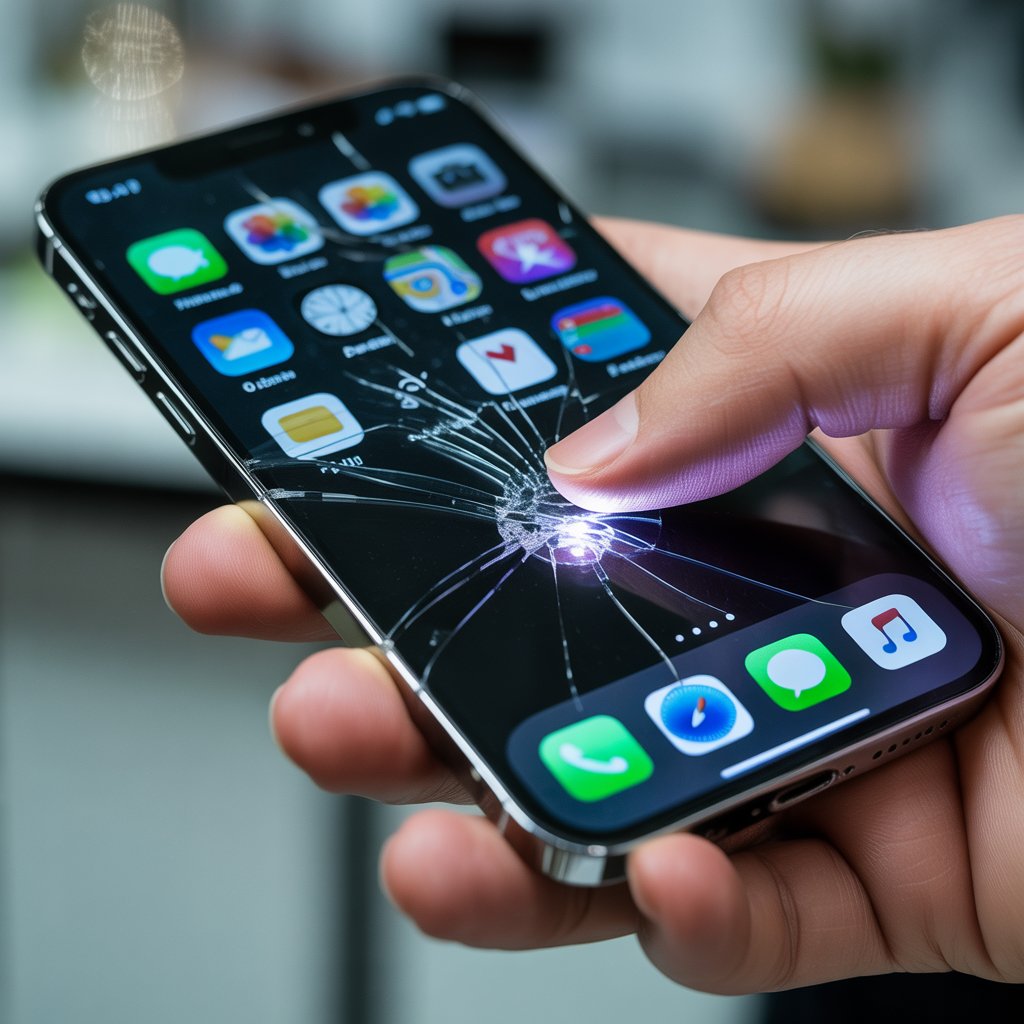
When people say their touch screen is not working on their iPhone, it usually means one or more of these problems:
- The screen does not respond to touch.
- The screen responds slowly or incorrectly.
- Swipes and taps do not register.
- Certain areas of the screen are dead.
- The screen freezes randomly.
This issue can be temporary or permanent, depending on the cause.
Common Signs of iPhone Touch Screen Problems
You may be dealing with a touch screen issue if you notice:
- The screen freezes while apps are open.
- You cannot unlock your iPhone using swipe or Face ID screen gestures.
- Ghost touches (the screen moves on its own)
- The keyboard does not register taps properly.
- The top or bottom part of the screen does not respond.
Recognizing these signs early helps prevent bigger problems later.
Main Reasons Why Touch Screen Not Working on iPhone
Understanding the cause is the most important step toward fixing the issue.
Software Issues
Software problems are the most common reason for iPhone touchscreen issues. These include:
- iOS bugs
- Corrupted system files
- App conflicts
- Failed or incomplete iOS updates
The good part is that software issues are usually easy to fix.
Hardware Damage
Hardware problems are more serious and include:
- Dropping the iPhone
- Water or moisture damage
- Loose display connectors
- Internal screen damage
If your iPhone was dropped recently, hardware damage is more likely to occur.
Screen Protector or Case Problems
Sometimes your phone isn’t the issue at all.
- Low-quality screen protectors can block touch sensitivity.
- Thick or poorly fitted cases can affect the screen edges.
- Dust trapped under the protector can cause dead zones.
Quick Checks Before Trying Advanced Fixes
Before you try anything complicated, do these quick checks:
- Wash and dry your hands.
- Clean the screen with a soft microfiber cloth.
- Make sure your screen is not wet.
- Remove gloves if you are wearing any.
- Check if the phone is overheating.
These simple steps solve the problem more often than you might think.
Step-by-Step Fixes for Touch Screen Not Working on iPhone.
Now let’s go through the proven fixes, starting with the easiest.
Restart Your iPhone
A simple restart can fix temporary software glitches.
How to restart:
- Press and hold the Power button
- Slide to power off
- Wait 30 seconds
- Turn the iPhone back on.
If your touch screen works after this, the issue was likely minor.
Force Restart Your iPhone (Very Important)
If the screen is completely frozen, a force restart is your best option.
Force restart steps by model:
- iPhone 8 and newer
Press Volume Up → Release
Press Volume Down → Release
Hold down the Side button until the Apple logo shows up. - iPhone 7 / 7 Plus
Press and hold Power + Volume Down together - iPhone 6s and older
Press and hold Home + Power together
This does not delete any data.
Clean the Screen Properly
Dirt, oil, and sweat reduce touch sensitivity.
Best cleaning method:
- Use a microfiber cloth.
- Slightly dampen with water (not dripping)
- Avoid alcohol and harsh chemicals.
- Gently wipe the entire screen.
Remove Screen Protector and Case
If your iPhone touch screen is not working properly, remove:
- Screen protector
- Phone case
Test the screen without them. If it works, replace them with better-quality accessories.
Update iOS to the Latest Version.
Outdated iOS versions often cause touch issues.
To update iOS:
- Go to Settings → General → Software Update.
- Download and install the update.
Apple frequently fixes touchscreen bugs through updates.
Free Up iPhone Storage
Low storage can cause lag and screen freezes.
How to check storage:
- Settings → General → iPhone Storage
If storage is almost full:
- Delete unused apps
- Remove old photos and videos.
- Clear large files
Reset All Settings (Safe Option)
This resets system settings without deleting data.
Steps:
- Settings → General → Transfer or Reset iPhone
- Tap Reset
- Choose Reset All Settings
This often fixes touch screen not responding issues.
When Only Part of the iPhone Screen Is Not Working
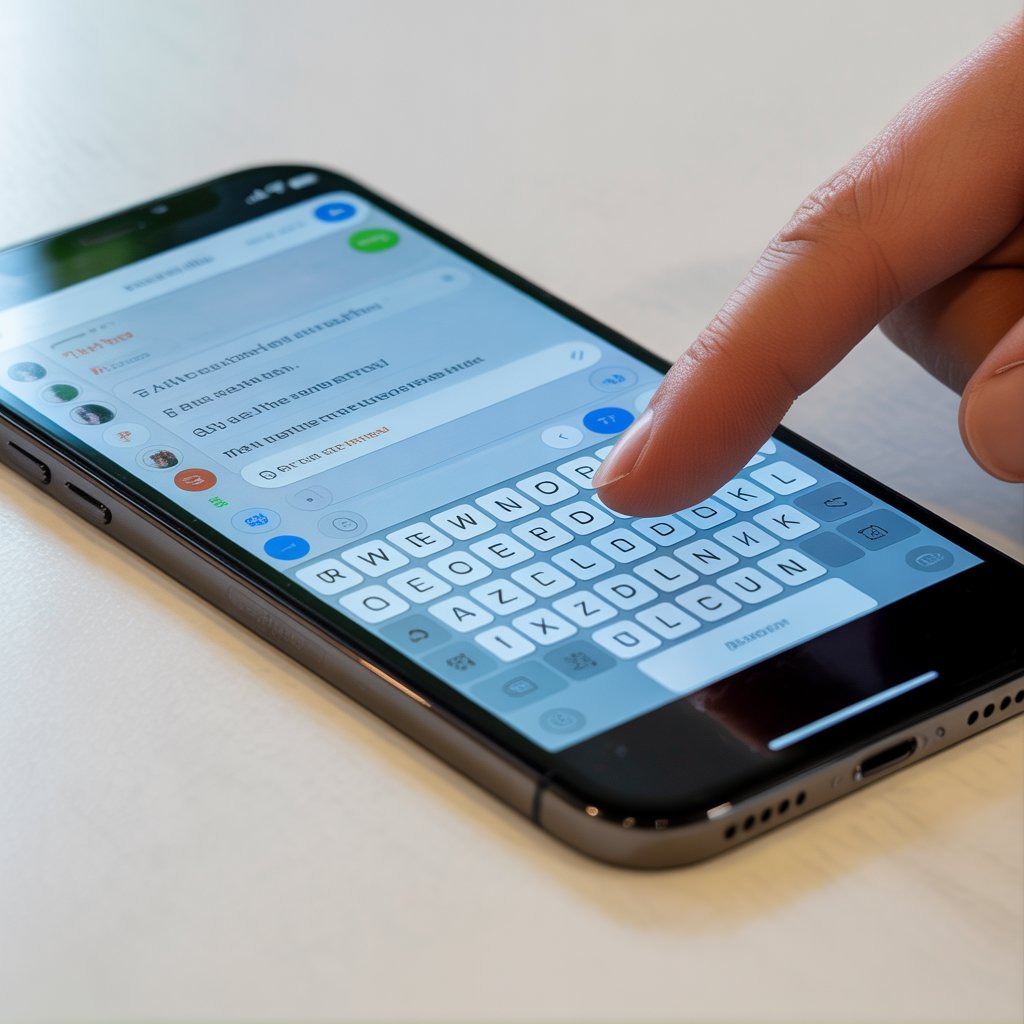
If only a specific area does not respond:
- The digitizer may be damaged.
- Screen calibration may be off.
- Pressure damage may exist.
Try rotating the screen or using AssistiveTouch as a temporary solution.
Touch Screen Not Working After iOS Update.
This is a common complaint.
What to do:
- Restart the iPhone
- Check for another iOS update.
- Reset all settings
- Restore using a backup if needed.
If the issue started right after updating, the software is likely the cause.
Touch Screen Not Working After Dropping iPhone.
If you dropped your iPhone and the touch screen stopped working:
- Internal connectors may be loose.
- The screen digitizer may be cracked internally.
- The display cable may be damaged.
In this case, software fixes may not help.
Using Recovery Mode or DFU Mode (Advanced)
If nothing else works, this is the last software option.
- Recovery Mode reinstalls iOS.
- DFU Mode completely reloads firmware
These methods can fix deep system issues, but should be used carefully.
When You Need Professional Repair
You should visit a service center if:
- The screen does not respond at all.
- The phone was exposed to water.
- There are visible cracks.
- Touch issues continue after the reset.
Always choose authorized repair centers if possible.
How to Prevent Touch Screen Issues in the Future
Follow these tips to avoid future problems:
- Use high-quality screen protectors.
- Avoid cheap charging cables.
- Keep your iPhone away from water.
- Do not expose it to extreme heat.
- Update iOS regularly
Prevention saves both time and money.
Frequently Asked Questions (FAQ)
Why is my iPhone screen not responding to touch at all?
This usually happens due to software crashes, low storage, or hardware damage. Restart and force restart are the first steps to try.
Can water damage cause the iPhone’s touchscreen not to work?
Yes. Even small moisture exposure can damage the digitizer and affect touch response.Does replacing the screen fix touch issues?
If the issue is hardware-related, replacing the screen usually fixes the problem completely.
Why does my iPhone screen work sometimes and freeze sometimes?
This is often caused by software bugs, overheating, or memory issues.Is the touch screen not working a battery problem?
Not directly, but an old or unstable battery can cause performance issues that affect touch response.
Can iOS updates break the touchscreen?
Sometimes, yes. Bugs in early updates can cause temporary touch problems, which Apple usually fixes in later updates.
Final Conclusion
If your touch screen is not working on your iPhone, do not panic. In most cases, the problem is caused by minor software issues, screen protectors, or temporary system glitches. By following the step-by-step fixes in this guide, you can often solve the problem at home without spending money.
However, if the issue is caused by physical damage or water exposure, professional repair is the safest option. Take care of your device, keep it updated, and use quality accessories to avoid touchscreen issues in the future.
If you found this guide helpful, bookmark it for later or share it with someone who is struggling with the same problem.

I am Riad khan. I am blogger about teach
Leave a Reply